Saturday, February 07, 2015

Review: STM Aero and Equil Smartpen 2

I recently acquired two new tech accessories I want to share with you!

STM Aero Small Laptop Backpack

I was able to take a look at this laptop backpack at the FETC15 conference in Orlando last month. After examining it, I realized this laptop backpack was one that would work for me! Here are the features I love, in order of importance to me when traveling:
  • SIZE: The STM Aero is intended for a 13" laptop, but I only need room for the 11.6" MacBook Air. Many backpacks sized for 13" laptops are big and bulky. This one is not! The outer dimensions are only 16.14 x 10.24 x 5.51 inches. The laptop device space is 9.05 x 12.8 x 0.98 inches, which will fit up to a 13" MacBook Pro Retina. In addition, is very lightweight at 1.5 pounds when empty! It comes in Berry red, black, and gray. (I opted for black since it does not show the dirt!)
  • IPAD: I wanted a dedicated pocket for my iPad Air 2, and this bag includes a nicely lined one of these, too.
  • BAGGAGE LOOP: The back of the STM Aero includes a luggage handle pass-through on the back to make it easy for me to carry it on top of my roller bag when I need to.
  •  KEY STRAP: One thing I always worry about when traveling is misplacing my car keys. The STM Aero includes a strap and hook for attaching my keys!
  • INSIDE SPACE: The STM Aero is not very deep, but I can easily fit my technology accessory bag with the adapters, power supplies, extension cord, and additional items in the space.
  •  SIDE POCKETS: I often carry a water bottle, so a side pocket is a necessity for me. This backpack has 2 side pockets, so I am using the other one for easy access to my in-ear headphones.
  • STRAPS: The STM Aero has comfortable, padded shoulder straps and back, and also includes a "sternum strap" that connects the straps in the front in case I am carrying a heavier load. There is a grab strap at the top of the backpack which makes it easy to carry down the plane aisles.
  • FRONT POCKETS: The STM Aero has a zippered, soft-lined pocket on the front which includes two slip pockets (one that I use for my iPhone 6+ and the other for my Wayfarers) and I store my boarding pass in the larger section for easy access to it.
  • INSIDE POCKETS: Inside the STM Aero, there are three more slip pockets, two pen slots, and a deep zippered pocket. 
I marked up some STM Aero images so you can view the components I included in the review.


When fully loaded, the STM Aero Small Laptop Backpack retains it shape and is very comfortable to wear. If you need more space for your items, check out the larger laptop bags and rollers on STM's site!


EQUIL SMARTPEN 2

I know we already have iOS and Android devices with drawing tools and external art/drawing tablets. And there are electronic pens that can collect your notes and send them to your computer when you use special notebooks for taking notes.

I had read some reviews about the Equil Smartpen 2 and thought it hit the sweet spot for both notetaking and drawing in a more traditional way.

The Equil Smartpen 2 includes a reciever that you clip to any piece of paper, pad, or notebook, a regular size pen, and extra pen tip, and a cool case for carrying and charging.

Equil Smartpen 2


As you are drawing or writing, and you are connected via Bluetooth to your Mac or Windows computer or iOS device, what you are drawing is transferred in real-time to the computer or iOS or Android device. You can then turn handwriting into text if you want to on the computer or tablet. It is easy to begin new "virtual" pages by pushing the button on the receiver. The receiver can hold 4 GB of information.


Real-time transfer of drawing to tablet


There are two apps for the Equil Smartpen 2 for the iOS and Android devices - Equil Note and Equil Sketch - one for writing and one for drawing. I think the drawing app is a paper-based sketchnoter's dream come true! (Equil Note is also available for the Mac and Windows platforms.) 

You don't need to be Bluetoothed to a device when you are taking notes or drawing. You can simply use the pen and the small receiver, which will collect the information, and send it to your computer, tablet, or phone later. (This saves some battery life, since the BT connection can be shut off on the receiver while you are writing/drawing.)

The notes are synced across your devices using iCloud, Dropbox, or Evernote and also share with social media.


I can't seem to locate a stylus tip for the pen to use with the iPad as shown in the video. (Perhaps that was scrapped during development.) You can find out more about the Equil Smartpen 2 on their site!


Sunday, February 01, 2015

Literacies for the digital age: Data literacy


This is the sixth in a series of blog posts highlighting the digital literacies our students will need to succeed. This post will provide you with some ideas on how to infuse data literacy skills into the curriculum.

According to Dr. Milo A. Schield, students must be able to read, interpret and evaluate information. They must also be able to analyze, interpret and evaluate statistics. And they must be able to gather, assess, process, manipulate, summarize, and communicate data.
These three skills collectively comprise data literacy.
One way to have students gain the data literacy skills is the student creation of an infographic as a creative assessment. This assessment process includes practice with the information, visual, and computer tool literacies, too.
An infographic is a visual representation of data that allows the viewer to understand a topic, get another view, or persuade them to research further.
In the Newspaper Designer’s Handbook, a McGraw-Hill publication by Tim Harrower and Julie Elman, they provide some thoughts on why one might use an infographic. They are writing about infographics to enhance a news story, but the same ideas are applicable to student-created infographics to support a research project.
  • To complete the “story” for those who are interested
  • To draw in viewers from those that might skip the information
  • To pull out salient numbers, details, and comparisons
  • To clarify with statistics, geographical detail, or trends
  • To help insure the viewer “gets it”
Infographics fall naturally into categories such as statistical infographics, timeline infographics, process infographics, and research-based infographics.

STATISTICAL INFOGRAPHICS
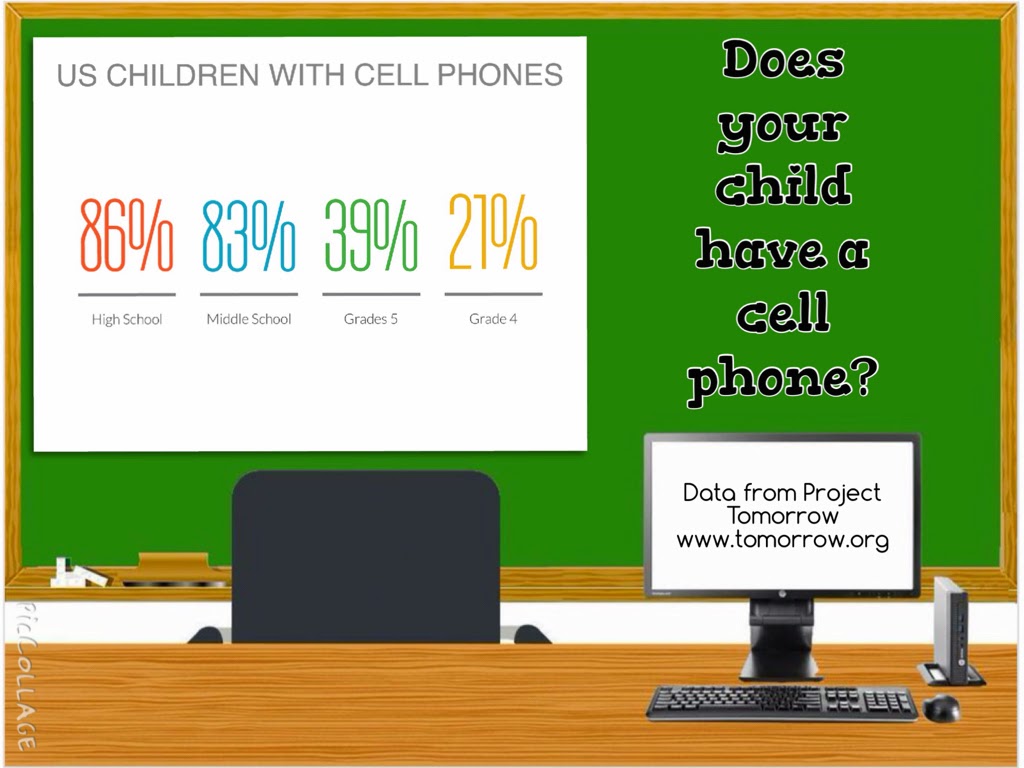
Statistical infographics contain an overview of a topic and data to support the content. These infographics are used to either inform or persuade.
Pouring in your cup
Statistical infographic


For elementary students, showcasing statistical infographics which use size to indicate the different percentages instead of numbers would be easier for them to replicate.


For elementary students, showcasing statistical infographics which use size to indicate the different percentages instead of numbers would be easier for them to replicate.


TIMELINE INFOGRAPHICS
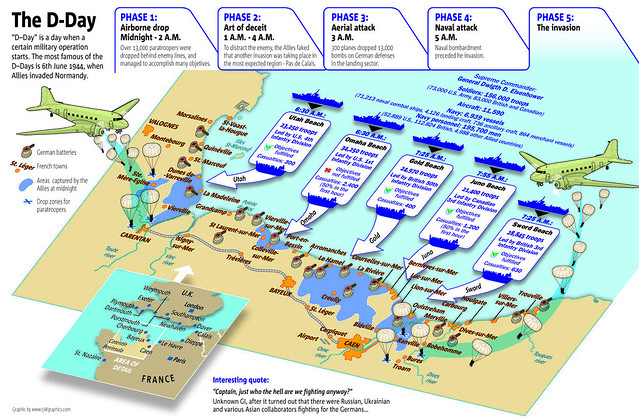
One way to get students “hooked” is to showcase infographics that engage them, like this timeline infographic that tells a story.

Normandy invasion
Timeline infographic 2


PROCESS INFOGRAPHICS
A process infographic is a little different from a timeline. The creator adds a branching component to the visualization. A process infographic could be used when students are creating “how-to” essays. The infographic can be created by the student writing the essay, or a partner student can design the infographic from the essay.


RESEARCH-BASED INFOGRAPHICS
One of my favorite types of infographics is the research-based infographic. Students are given a sum of money and have to conduct research to determine how to raise those funds. Snagajob.com published the infographic below and, although they did not include where the data was found, they did include fairly comprehensive overviews of how they determined the statistics.

Here is the explanation for one of the items included in the infographic above: “Peyton Manning makes $14 million per year. Super Bowl notwithstanding, in the 2009 regular season he completed 4,500 passing yards (totaling 162,000 inches). If you divide his salary by the number of passing inches, he would need to pass the ball a little more than 8.4 inches to make $729. And just in case you’re wondering, a football is 11” long.”
There is a new series of research-based infographics called “If the world were a village of 100 people” created by Toby Ng. These data-based infographics are simple and informational, but are very compelling.

DATA VISUALIZATION
To learn how to process data, students should view already-created visualizations and discuss how and why the data is presented the way it is and its relevance.
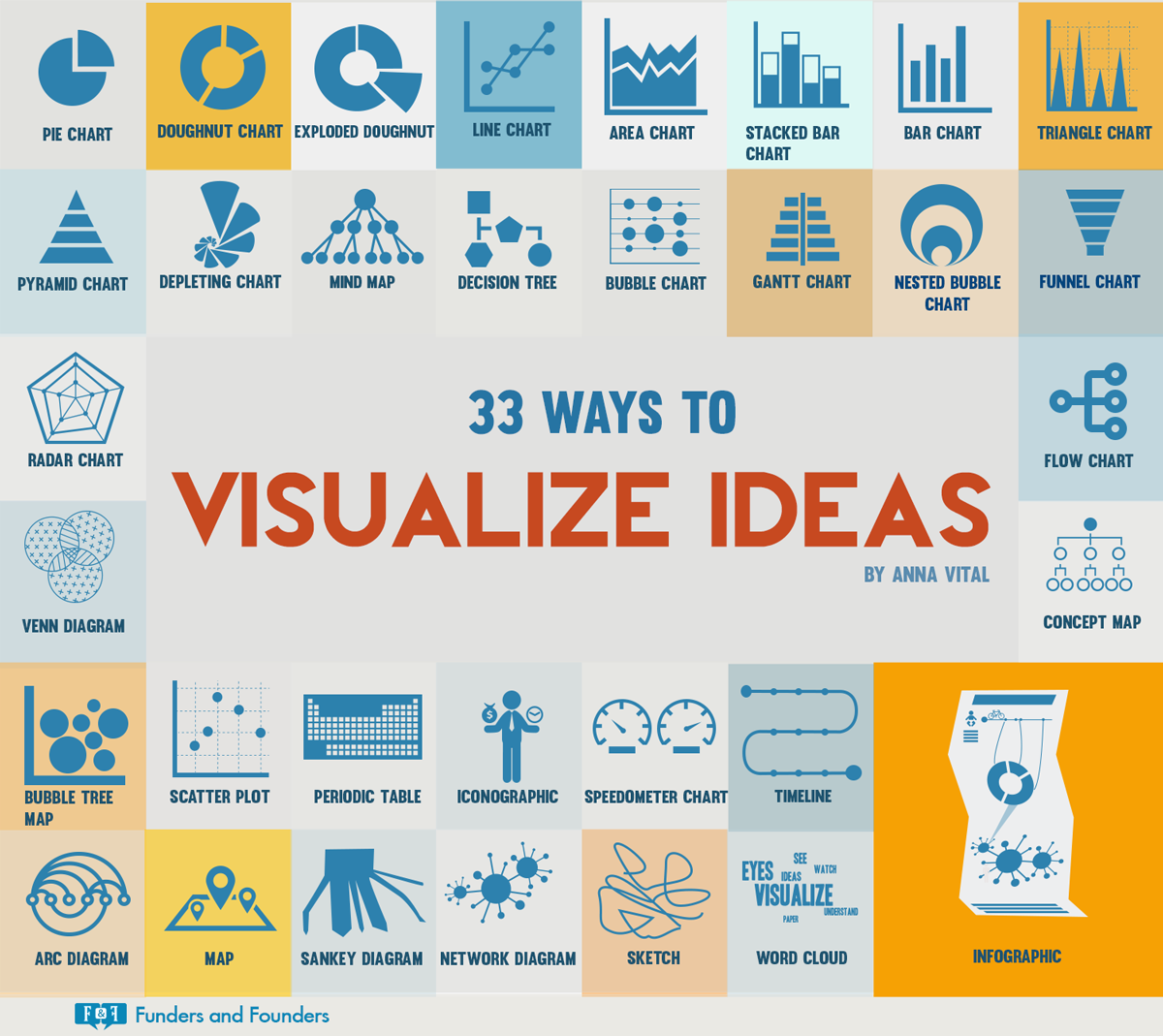
This great infographic provides an overview of some visualization options.


One good place for teachers and students to learn how to pick the most effective visualization for the data is Hans Rosling’s Gapminder site. The Gapminder site has a teacher area with samples, ideas, and curriculum to support the teaching of these skills. There are instructional videos and PDF downloads for both teachers and students.
Another site to support students learning how best to visualize data is Google’s Public Data Explorer.

CREATING THE INFOGRAPHICS
There are many apps and tools that can help students create their infographic. Something as simple as a Microsoft PowerPoint, Apple Keynote, or Google Drawings single slide or page can be used. Once the infographic is created on a single slide, the slide can simply be saved out as an image and easily shared.
There are many online sites that provide templates for infographic creation. Some are paid sites that provide a few free templates. However, according to Eric K. Meyer, the author of what I consider the best book about infographic creation, a good infographic should have a beginning, a middle, and an end. He likens the visual elements in an infographic to those in a new story’s headlines and lead.
In addition, he goes on to state most readers skim both text and images rather than reading them, so a well-crafted visual image at the top of the infographic may just be the hook the viewer needs to stop and take the time to read and look at the information in the infographic. He talks about the way people read an infographic as an inverted pyramid style with the main point at the top followed by secondary points and supporting details. He also states any text in the title of the graphic should communicate facts rather than just label the information.

The templates offered by the online infographic creators do not often follow this tenet. Infographics need “weight” so the viewer knows what is most important. Many infographics I see are simply posters, with all the information equal in weight. Since an infographics is intended to inform or persuade, there does need to be a “hook” so the viewer will examine it in depth.
What is useful about the online infographic-creation sites is that a student is able to start the infographic from scratch and many, many graphical assets are included. Some of these tools even have the ability to input data directly into the tool and pick an appropriate data visualization for the project.
Online infographic creation sites
Tablet apps for infographic creation
You can find much more information, samples, ideas, and tips on my Kathy Schrock’s Guide to Everything: Infographics page. Here is a quick video overview!
What do your students use for creating infographics? What type do they create most often? Let us know on Twitter! #kathyschrock

Tuesday, January 13, 2015

Using first gen iPads in the classroom

I received a note today from a teacher who wound up with a classroom set of iPad 1's for her classroom, and she was looking for lesson ideas that would work with that "older" device. Of course, many of the lesson ideas, tips, and tricks that are on the Web for any generation of the iPad will provide a good starting point for planning, like those I have on this site, but there are some specific things to consider when using the older iPad.

There were some limitations on the first gen iPad-- it had no camera and only projected certain things through the VGA connection. Back in 2010, I asked people to add apps that would project with an iPad to a Google form. I have no idea if this is of any use now, but here is the link

The iPad first generation can run up to iOS 5.1.1, so, when looking at current lessons that use iPad apps that require a newer operating system, and doing a search for comparable apps in the iTunes App Store, look for the operating system requirements listed on the app page. It will probably take a bit of searching to find those that will work, but it will be worth it! For instance, one of my favorite iPad apps, Sock Puppets, only requires iOS 4.3. And I am sure there are plenty of good creation apps that still work with the older operating systems.


Sock Puppets only needs iOS 4.3

I also figured out if you do a Google search on "iPads in the Classroom" or "iPad in the Classroom", and limit the date span of the search from the day the iPad 1 was announced to the day when the iPad 2 was launched, the resulting series of hits will provide lots of great ideas on the use of the original iPad to support teaching and learning.

Here is how to conduct that search. Do a search in Google, pick the SEARCH TOOLS drop-down menu, pick the date area and pick a "custom date". I searched Web pages that were put up from January 27, 2010-March 2, 2011. (Of course, this does not mean there were no useful Web pages put up after that time.) I did the limited date search to find pages that could only have included ideas and successful practices for the iPad first generation.


Of course, even though the iPad first gen cannot take pictures, students can still download images and edit them using certain photo-editing apps. And there are collage apps, like CollageIt Free, that only require iOS 5.0. It takes a bit of work to find apps that will run on the older iPad, but it is not impossible. And don't forget to search for iPhone apps, which will run nicely on the iPad, too.

I came across this PC World article from 2013 that states you might be presented with the ability to download an older version of an app that will work on your older iPad device. (I don't usually have an "older" device, so do not know if this is still happening.) If it is, it would allow installation of older versions of popular education iPad apps to be installed on the first generation iPad. 

Anyone have any additional ideas for those with the first generation iPads? Are you using one or more of this generation of iPad in your classroom and would like to share the list of creation and editing apps you have on the devices? It would be appreciated and save others a lot of App Store searching time!


Thursday, January 01, 2015

Literacies for the digital age: Numeracy


This is the fifth in a series of blog posts highlighting the digital literacies our students will need to succeed. This post will provide you with some ideas on how to infuse numeracy, one of the traditional literacies along with reading and writing, into the curriculum.
Numeracy is the ability to reason and to apply simple numerical concepts. This includes, among other things, mastering of basic math, number sense, computation, measurement, and statistics. (In my grouping of literacies, I separate data literacy into its own category.)
The document entitled “Standards for Mathematical Practice” provide an extensive overview of the “varieties of expertise that mathematics educators at all levels should seek to develop in their students”. These standards “describe ways in which developing student practitioners of the discipline of mathematics increasingly ought to engage with the subject matter as they grow in mathematical maturity and expertise throughout the elementary, middle and high school years”. It is about being able to take their mathematical skill set and use higher order thinking skills to evaluate, experiment, and reason. The Standards for Mathematical Process are:
  • Make sense of problems and persevere in solving them: students analyze, conjecture, monitor and evaluate, transform, and conceptualize
  • Reason abstractly and quantitatively: students decontextualize and contextualize as well as creating a representation of the problem
  • Construct viable arguments and critique the reasoning of others: students can justify, reason inductively, and compare and defend
  • Model with mathematics: students use their math skills to solve problems in everyday life
  • Use appropriate tools strategically: students can pick the appropriate tool to help them
  • Attend to precision: students label and present their mathematics in a way that make it understandable to others
  • Look for and make use of structure: students can recognize mathematical patterns
  • Look for and express regularity in repeated reasoning: students notice when calculations are repeated and use that information
In order to develop these levels of expertise in students, educators need to be able to connect the mathematical practices to the mathematical content in mathematics instructions. There are various ways to help this happen. There are the commercial textbooks and online products that can support student mathematical understanding. There are online mathematics informational sites to provide students with another “voice” to help them understand the basics a bit better and there are stand-alone software programs and apps to provide additional practice.
I am not a mathematics educator, so do not feel comfortable recommending software and apps to support mathematics instruction. I would not know if the app was reinforcing the skills in an appropriate way. However, I have created a PDF form entitled “Critical Evaluation of a Content-Based iPad/iPod App” (which could easily be used for Android apps, too). This form provides some guidance for teachers of any subject as they examine apps and tools to support instruction.

ONLINE MATHEMATICS INFORMATIONAL SITES

As with any online material, educators should preview the elements of the site to validate the information  presented and methodologies being used.
  • MathPortal is a site, created and written by a mathematician, which includes tutorials, formulas, sample assessments, and much more for upper middle school and high school students
  • PBS LearningMedia includes material from PBS and also videos imported and streamed from Khan Academy. These videos can be searched by grade level and subject. No log-in is needed to view the videos and, since Khan Academy now requires a log-in, this site is an easy way for students of any age to access the Khan Academy videos without providing personal information.
  • The National Council of Teachers of Mathematics provides support for teachers and vets online sites and lessons for use in the classroom. They also host the Illuminations site, one of the partner content collections that were a component of the now-closed Thinkfinity portal.
  • It takes a while to comb through the plethora of links on Pinterest, but you can usually find a few gems!

What type of online math sites do you find useful? Share on Twitter! #kathhyschrock

Tuesday, December 02, 2014

HP EliteDesk 800 G1 Mini PC in the Classroom Contest

The Hewlett Packard EliteDesk 800 G1 Mini PC is a tiny desktop computer with lots of big features!

Its footprint is 6.9 x 1.3 x 7.0 inches and it weighs only 2.92 pounds, less than a lot of laptops! The HP EliteDesk 800 G1 Mini PC  has a 4th generation Intel processor and runs the newest Windows operating systems. The front of the computer includes two USB 3.0 ports (one of which is a USB fast charge port) and an audio-out and microphone jack.


Shown with optional stand, monitor, keyboard and mouse


On the back, it has an additional four USB 3.0 ports, a VGA connection, an Ethernet port, 2 Display Ports, and an audio-out jack. The bottom of the HP EliteDesk 800 G1 Mini PC has a VESA mount.

A wireless card is an option as is an external DVD/RW drive. With a 500GB standard hard drive or up to a 1TB solid state drive, the HP EliteDesk 800 G1 Mini PC packs a great computer into a "mini" package. Also, due to its small size, it has more than 3 times the energy-efficiency of a tower desktop.


The unit I received has a 2.9gHz i5 processor and is running Windows 7 Professional, but the upgrade disk to Windows 8.1 was also included in the package. It has 4GB RAM, a 128GB solid state hard drive, and the WiFi card.


Here is more detailed specs and information about the HP EliteDesk 800 G1 Mini PC.


USE IN SCHOOLS

In the education arena, the HP EliteDesk 800 G1 Mini PC can solve any number of problems as well as help schools think “out of the box”.

Teacher’s desks are notoriously cluttered with the tools of the trade…their teaching materials, stationery supplies for student use, and much more. The diminutive footprint of the HP EliteDesk 800 G1 Mini PC can free up a ton of usable space on a teacher’s desk and also eliminate the “big box” on the dusty floor! Teachers can easily get access to the USB ports and audio jacks on the front of the EliteDesk G1 Mini PC when they need to, too.

Another plus for teachers is the WiFi capabilities of the device. In the past, teachers were tied to classroom area of the Ethernet jack and VGA connection. Now, with wireless projectors and wireless network access, the HP EliteDesk 800 G1 Mini can sit anywhere in the room. In addition, with the plethora of collaborative apps that can have students share over WiFi, the teacher and students can share documents, collaborate in real-time on virtual whiteboards, and students can mirror their mobile devices to the teacher’s desktop.

In schools where security of computers in a lab setting or classroom is a concern, this tiny HP EliteDesk Mini 800 G1 Mini PC can be easily locked up at night in a drawer or closet. It does have the traditional cable lock port, but locking them up at night might be a better option.

The low cost and energy-efficiency also make this mini computer a perfect replacement for the bigger CPUs in a computer lab setting. The SSD drive makes them fast to boot up and, again, space is saved on the computer lab tables for other student project-based or reference work.

One creative idea, if students have a monitor, keyboard, and mouse at home, is to have the HP EliteDesk 800 G1 Mini PC become a school’s 1:1 device of choice. The light 2.92 lb. weight, the SSD drive which would not be subject to problems when carried in a backpack, and the built-in WiFi could allow students to bring it back and forth from school to home. In school, there would be labs of monitors, keyboards, and mice and extra sets of these in the classroom, library, science labs, and even the cafeteria!  A student would just hook-up his or her HP EliteDesk 800 G1 Mini wherever there was a “workstation” spot. 

THE CONTEST

HP graciously provided me with the opportunity to give away a new HP EliteDesk 800 G1 Mini PC to a lucky US or Canadian PreK-16 educator or pre-service or graduate education student! In order to have a chance to win the Mini PC, educators were asked to make a mini-- a mini-infographic that is!


As you know, an infographic is a visual representation of data. Having students create them as a formative or summative assessment can help them practice their information literacy, visual literacy, data literacy, and technology literacy skills.


When starting off with this type of lesson or unit, it is best to start small. Have students research to find one piece of interesting data, decide who the audience for the infographic is going to be, consider the type of data visualization that would work best to showcase the information, and then create a mini-infographic showcasing just that single piece of interesting data.


USA Today, since beginning publication, has offered a mini-infographic they call a “snapshot” on the front page of each issue of the newspaper. Researchers, reporters, and editors in each of the primary departments of News, Money, Sports, and Life account for most of the ideas and research for these snapshots. Once the research is complete, the information goes to a graphic artist who creates the infographic. This process usually take between three and four hours.


Here are some links to sample USA Today snapshots in the area of news.


CONTEST OVERVIEW (CONTEST CLOSED DECEMBER 7, 2014)


In order to participate in the contest to win an HP EliteDesk 800 G1 Mini PC desktop computer, the educator had to create a mini-infographic or “snapshot” and submit it to me. The winner of the HP EliteDesk 800 G1 Mini PC was randomly chosen from those educators who submit the mini-infographic.


The topic of the infographic had to be in their content area, an education or educational technology-related topic, or anything else of interest to K-12 educators or students. The infographic could have been intended to inform or persuade.  I provided the entrants with the background image to use for the infographic.


To find out more about infographics, visit my infographics page here: http://www.schrockguide.net/infographics-as-an-assessment.html


CREATING THE MINI-INFOGRAPHIC


The easiest way to create a mini-infographic is to create a single slide in PowerPoint, Keynote, or Google Slides.  For this contest, I had created a PowerPoint, Keynote, and JPEG version of the background entrants were required to use. The background illustrated the "clean" desk teachers would have by using an HP EliteDesk 800 G1 Mini PC!


On that single slide/image, entrants had to add the text and data information, and include the citation to the sources used for their infographic information. All of that information had to be that single slide. Here is a sample I created:


When entrants were finished with the slide, in PowerPoint they picked FILE- SAVE AS PICTURES, in Keynote picked FILE-EXPORT TO- IMAGES, and in Google Slides picked FILE- DOWNLOAD AS- JPEG IMAGE. They saved the image to their desktop or Google Drive (or their Camera Roll or Gallery if they were using a tablet).

Entrants emailed the single JPEG image to me at kathy@kathyschrock.net. They also put "Mini" in the subject line of the email and their name, email address, and Twitter handle (if they had one) in the body of the email.


Here were the links to the background image in the three different formats


REVIEW


Educators had to locate some small bit of data they wanted to share with other educators or students. Using the background on the single slide, they added --

  • a title for the infographic
  • a labeled chart or graph
  • text to explain what the viewer is seeing
  • URL to the page(s) where they obtained the data
  • Saved the slide as JPEG to their computing device
  • Sent the JPEG as an attachment to kathy@kathyschrock.net with the subject of "Mini"
  • Included their name, email address, and Twitter handle, if they had one, in the body of the email
The contest was open to PreK-16 educators and pre-service and graduate education students in the United States and Canada.

By submitting the mini-infographic entry, entrants had a random chance to win the HP EliteDesk 800 G1 Mini PC and they were giving me permission to possibly post your infographic on my blog site whether they won or not. Their name would not appear on the Web page, just the mini-infographic itself.


By submitting the entry, if they were chosen as the winner, they were are also allowing me to share their name, email address, and mailing address with HP (or an HP associate) so they could send the winner  the HP EliteDesk 800 G1 Mini PC.


The winner’s name would be announced on the blog (but not tied to their submission) and on Twitter.


The email address of all who submit entries will remain private except for the winner, whose email address will be shared with HP (or an HP associate).

The submissions were due on: December 7, 2014 by 11:59 PM Eastern Time and the contest is now closed.

UPDATE DECEMBER 8, 2014


SUBMITTED INFOGRAPHICS


Here are some of the great mini-infographics that were submitted! Thank you to all who re-tweeted about the contest and for those that submitted an entry!


THE WINNER

The randomly-chosen winner of the giveway of the HP EliteDesk 800 G1 Mini PC was Mark Case! I used the DecideNow app on the iPad to pick the winner-- congrats to Mark!

Monday, December 01, 2014

Literacies for the digital age: Historical literacy


This is the fourth in a series of blog posts highlighting the digital literacies our students will need to succeed. This post will provide you with some ideas on how to infuse historical literacy into the curriculum.

WHAT IS HISTORICAL LITERACY?

The Hyperhistory site from the National Centre for History Education in Australia is a wonderful site for learning about all aspects of history education, including historical literacy. They have a teacher’s guide which contains information about the nature of historical learning, historical literacy, history education and ICT, and more. Their overview of the key elements of historical literacy include:
  • Events of the past: knowing and understanding historical events
  • Narratives of the past: having time to think about how the past can be explained through a variety of perspectives
  • Research skills; gathering, analyzing, and using artifacts, documents, and graphics
  • The language of history: interpreting words in history
  • Historical concepts: understanding the cause and motivation of historical events and to understand events from the point of view of participants
  • ICT understandings: how to identify bias, authority, and reliability in online information
  • Making connections: thinking about the present and the past
  • Contention and contestability: understanding about debate and discourse in a historical perspective
  • Representative expression: understanding history through art and media of the past (and visual media literacies are important here)
  • Moral judgements in history: dealing with the moral and ethical components of historical events
  • Applied science in history: facial reconstruction, computer imaging, DNA testing, forensic science, satellite mapping, etc.
  • Historical explanation: the ability to reason historically based on a foundation of evidence

HISTORICAL LITERACY AND THE CURRICULUM

The acquisition of historical literacy skills in the digital age involves aspects of other literacies, too. Students need to use the information literacy skills for the research process which involves::
  • Identifying a list of keywords about the topic
  • Creating an essential question
  • Listing the places for gathering their information. This may include the the Web, subscription databases, or experts in the field.
  • Conducting some cursory research to make sure there will be information available for their topic.
  • If necessary, re-working their original question.
  • Utilizing critical evaluation skills in order to determine the credibility, validity, and authority of the research they find.
  • Gathering their assets and remembering to cite their sources

Understanding history through the art and media of the past includes an attention to the media literacy skills, outlined by the Media Literacy Project, which include having students:
  • Understand how media messages create meaning
  • Identify who created a particular media message
  • Recognize what the media maker wants us to believe or do
  • Name the “tools of persuasion” used
  • Recognize bias, spin, misinformation and lies
  • Discover the part of the story that’s not being told
  • Evaluate media messages based on their own experiences, beliefs and values
  • Create and distribute their own media messages
  • Become advocates for change in their media system
Viewing the art and media of the past also involves the visual literacy skills included in the definition  created by the Association of College and Research libraries as those that “equip a learner to understand and analyze the contextual, cultural, ethical, aesthetic, intellectual, and technical components involved in the production and use of visual materials.”

RESOURCES

One of the ways many of the key skills of historical literacy can be acquired is through the use of primary source documents. Since so many historical artifacts are now digitized and available online, items can be found to support many content areas and time periods. Historical literacy, to me, seems to be a component of all of the subject areas and not just a part of the social studies curriculum. There are many well-know collections of primary source documents, some of which provide materials to support teaching and learning. Here are two of my favorites!

American Memory Collection

The American Memory Collection is a project of the Library of Congress. It includes access to over 9 million items including written and spoken words, sound recordings, still and moving images, prints, maps, and sheet music that document the American experience. The digitized items are from the collections of the Library of Congress as well as other cultural institutions.
Their site includes a wonderful section about primary sources which provides teachers with guides and handouts to help this process. The parts of this section include:
  • Using primary sources: an overview of how to guide students through the process
  • Why use primary sources: how to give students a real sense of what it was to be alive in an earlier time
  • Citing primary sources: style guidelines for MLA and Chicago
  • Copyright and primary sources: generation information about copyright as well as specifics regarding the collections on their site
  • Finding primary sources: links to the gathered resources such as sets of primary source materials, sources by US state, themed resources, Web guides, and more
  • Teacher’s guides and analysis tools: guides for teachers to help them teach the analyzing of primary sources, printed texts, maps, motion pictures, oral histories, photographs and prints , political cartoons, sheet music and song sheets, and sound recordings
This is the Primary Source Analysis tool for students to use.

National Archives 

The National Archives and Records Administration also includes a teaching and learning section for using the documents of the United States government in teaching and learning.
The site includes links to:
  • Featured exhibits which are collections of documents about a theme, such as the “Charters of Freedom” and the “Discovering the Civil War”
  • The Digital Vaults which include 1200 of the over 10 billion records housed there; one of my favorites is a sample letter written by a teenager beseeching the government to allow the Beatles to perform even though, in 1963, there were labor restrictions in place that made it difficult for foreign musical groups to come to the US; students can also use the items in the vaults to make a poster of movie from resources they find.
  • eBooks that support exhibits such as signatures in the collection, baseball, emancipation, and the Constitution
  • Special topics on their DocsTeach page which include YouTube content, iTunesU courses, and podcasts, images, audio, and video “pinned” to Google Maps
  • DocsTeach allows educators to create their own interactive learning activities using documents from the collection and students can complete the activity via  an iPad app  or via a Web browser on a computer,
The National Archives site for educators also includes document analysis worksheets for the following types of documents.

What are your favorite historical online items to use with students? Let us know in Twitter! #kathyschrock