kathy@kathyschrock.net

Showing posts with label Android. Show all posts

Tuesday, July 07, 2015

Android apps for the remembering level of Bloom's

This is a re-posting of a blog post of July 12, 2013, which originally appeared on the now-defunct Sony Education Ambassadors site.

If you were an education major in college, you are probably very familiar with Bloom's Taxonomy. In the image below, on the left, is the original Bloom’s Taxonomy, developed in the late 1950’s by Benjamin Bloom. On the right, is the Revised Blooms Taxonomy, published in 2000 by Anderson, a student of Bloom’s, and Krathwhol. The names of the levels were turned into action verbs since Anderson and Krathwhol felt that action verbs implied engagement and re-arranged them a bit.
I want to point out is there is still a ton of instructional materials on the Web mapped to the original taxonomy and I encourage you to search for those "older" terms, also, for some good ideas.
The image below includes both the original and revised taxonomies as well as the mapping of the levels to make it more clear when identifying resources to support them.


However, when I think about Bloom's Taxonomy, I do not think of it as a triangle. The triangle image seems to indicate learners start at the bottom and move upwards. I feel that we use each level of the cognitive processes over and over as we begin to acquire new knowledge on a topic. My view of Bloom's Revised Taxonomy looks like the version below, The Cogs of the Cognitive Processes, with all of the levels inter-related and dependent on one another.


REMEMBERING LEVEL


The first cognitive level of Bloom's Revised Taxonomy is the remembering level. The remembering level involves finding information, storing it somehow and then recalling it. Activities involving this skill level include...


Diane Darrow, in an Edutopia article, outlines the questions 
you need to ask when looking for and identifying apps to use to support this level of Bloom's.


ANDROID APPS AND SITES FOR THE REMEMBERING LEVEL


Information searching: Diigo
Diigo is an online bookmarking tool that allows students to gather information, tag it, and annotate it. With the Diigo Power Note app, they can add text notes, bookmarks, cached pages, pictures, text messages to their Diigo library as well as access information already in the library.


Retrieve information: Evernote
Evernote is a must-have app that allows students to gather assets dealing with a topic.  It runs on all devices and operating systems and allows the user to take notes, capture photos, create to-do lists, record voice reminders and search of all these. It is an organizational tool each student should have!


One tool that I have started using is Pocket, which downloads the items you add to it. This is a great way for students to have a hard copy of what they have found.  They can view the collection visually or in a list. They can also easily get back to the original site.


Remembering terms, ideas and facts can be accomplished with a concept map. Simple Mind Free lets students easily create a mind map, concept map, or flow chart. Students can use Simple Mind Free for all types of things, such as brainstorming new ideas, illustrating concepts, making lists and outlines, planning presentations, creating organizational charts, and more! There is even a desktop version available for Mac and Windows.


One way for students to remember is to label a diagram or image or illustrate a concept.
Skitch lets students--
- Annotate: Add arrows, shapes and text to existing images
- Create: Draw something new
- Edit: Reposition, recolor and remove annotations at will
- Share: Send sketches and annotations to Twitter, email or Evernote


Timelining: TimelineJS
http://timeline.verite.co/

Timelining is another activity based at the remembering level. TimelineJS is not an app but a Web site. It works best through the Dolphin Browser..  A student visits the TimelineJS site, downloads a Google Spreadsheet template to his/her Google Drive, edits the sample content with timeline information, and publishes it. The student then goes back to the site, enters the published URL of the Spreadsheet, and receives the embed code that can be put into a Google Site, a Weebly page, or blog. This timeline can include video, too!

These are just some apps to get you started! The Google Play Store offers a ton of other apps that can be used at this level (or sometimes at all the Bloom's levels!) You can find more suggestions on my Bloomin' Apps page-- look for the chart for Android apps!


Thursday, November 22, 2012

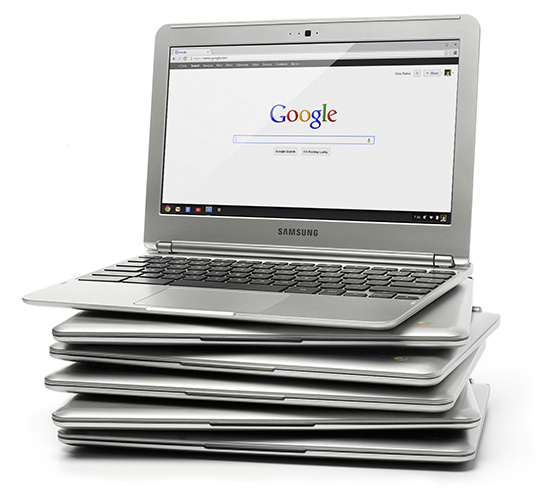
Samsung Chromebook: First impressions

Last week, I purchased the new Samsung Chromebook. I had been hearing lots of good things happening in schools that have Chromebooks, and, as a Google Certified Teacher, I decided to learn more about them.

There are two new Chromebooks available right now-- the Samsung for $249 and the Acer C7 for $199.  Here are the simple specs on each--


Samsung
11.6" matte screen
2 GB RAM
16 GB SSD
Samsung Exynos 5 Dual 1.7 GHz processor
1 USB 2.0 port, 1 USB 3.0 port, HDMI port, SD card slot
Bluetooth
2.4 lbs.
6.5 hours of battery life


Acer
11.6" glossy screen (1366x768)
2 GB RAM
320 GB SATA hard drive
Intel Celeron 1.1 GHz processor
Ethernet 10/100 port, VGA port, 3 USB ports, HDMI port, SD card slot
Wireless a/b/g/n
3.05 lbs.
3.5 hours of battery life

I waffled back and forth before deciding which machine to buy. Originally I was enticed by the VGA-out on the Acer for presenting and the Ethernet port to hook it up to a network, but the 3.5 hour battery life and extra weight of the Acer made me change my mind. However, I believe, in a school setting, the Acer Chromebook would make a good teacher machine. Since it would probably be plugged in, the teacher could take advantage of the larger hard drive, the Ethernet port, and the VGA-out for presenting and not worry about battery life.

I decided on the Samsung and was not disappointed! It is decently speedy and has a great keyboard and trackpad. (One kind of weird thing on the Samsung is the letters on the keys are in lower case!) I went to Best Buy to see the Acer and the Samsung side-by-side, and the glossy screen on the Acer popped and seemed to be more readable. The matte finish and not-so-bright screen on the Samsung took a little getting used to, but it seems to be  usable even when the sunlight is shining right on the screen and there are no reflections like those on the glossy screen.

Of course, it is not about the hardware but about the move to computing in the cloud. The Chrome OS brought over all my settings from my Chrome browser on my computers, so I had all my "stuff" right away! I then took the time and went through the Chrome Web Store and installed other apps and extensions for things I knew I would need, like an image editor, a Twitter tool, and and FTP client. There are tons of applications and utilities  available that can be run right in the browser! The camera on the Chromebook even allows you to record directly into YouTube!

There is a cool Remote Desktop plug-in, which allows you to control your home computer (or any remote computer) from the Chromebook. You have to install software on the other computer for it to work, but it works great!

With each Chromebook purchased (at least right now) you get upgraded to 100 GB of Google Drive storage. Getting used to using Google Drive for file storage, and not just Google Apps, is a different way of thinking for me.  You can save and access files off an SD card in the slot, too, but using online storage is so much easier!

When I am not in a wireless environment, I can still work on various Google apps, like Google Docs, using an off-line version of these apps. When I get back into WiFi, the items sync with my Google Drive.

I have not yet been able to print. One needs to use Google's Cloud Print to do so, and, although I can see my printers, they are grayed out. I am assuming it is something in my networked printer set-ups and not the Chrome OS itself.

With the cost going down on these devices, I am starting to get questions about the benefits of Chromebooks over netbooks and tablets for the classroom.  At much the same price point as a netbook, you really get a better experience on a Chromebook, in my opinion.  The browser becomes transparent to the user and everything works smoothly.  The 10" tablets are appreciably more money than the Chromebook, although some of the 7" tablets are less or just a bit more in price, so, if you are comparing apples and oranges, the smaller tablets and the Chromebooks are similar in price.

The battery life of the Samsung is a big plus, too. It can last an entire school day without recharging. Of course, most of the tablets can, too. And there are many apps on a tablet that are not dependent on Internet access, so tablets come out ahead in that respect. But, the "real" keyboard on the Chromebook is seen as a useful thing in some user's eyes.

One point that really is evident about the Chromebook is the ability of multiple users to use the same machine without any worries of getting to someone else's data, or special set-ups, or any worries at all! Shared netbooks and tablets do require some finagling at times if there are multiple users. If a school is supporting a 1:1 initiative, then this point does not make a big difference in decison-making. But for the many schools that go with the "cart o' devices" model, the use of a Chromebook takes all the worry and work out of sharing.

I love the iPad and do iPad training in schools all over the country. And, when asked, encourage schools to do a 1:1 pilot when starting out with iPads or Android tablets. The experimentation and testing goes easily when each device is only used by one student. (I know there are second party products that make the shared tablets doable, too, but, for schools that do not have the tech support infrastructure, it can be problematic at times.)

Is the Chromebook as cool as an iPad? No. The touch interface and the wonderful apps for the iPad that making you "feel as one" with the device cannot be beat. But, for schools considering an alternative, give the Chromebook a try in a pilot project You will definitely be pleasantly surprised!

Thoughts? Things you want to share? Leave me a comment!


Thursday, November 01, 2012

Transformation

I took advantage of the iStopMotion app for iPad and the iStopMotion Remote Camera to create two versions of this video for two different purposes. One has already been submitted and the second does not have to be submitted since I am unable to participate in the required week-long institute.

I wanted to share the stop-motion videos with you. More about the process later!

TRANSFORMATION

Transformation is defined as a thorough and dramatic change.

Is education thoroughly transformed from the industrial model? Not yet, but there are some very exciting things being implemented into teaching and learning.

From lectures to flipping, STEM to STEAM, desktop to mobile, text to infographics, consuming to publishing, labs to BYOD, group teaching to personalized learning,  and networks to peer-to-peer, technology is becoming the conduit for it all.

Transformation of the traditional, teacher-centered or even the student-centered classroom, to one in which all members of the educational community have a part in planning, implementing, and creating, is becoming the norm. Collaboration is the way educators now work—from their PLN on Twitter to the global projects they and their class participate in.

Are we there yet? Not quite. Education systems, infrastructure, funds, and the “old” ways of doing things are still getting in the way at times.  But, with the number of successful practices and hard data coming out to support these transformations’ positive impact on student learning, education seems to be ready to forge ahead with these and other, yet undiscovered, innovative practices.

I wanted to showcase, in a unique way, the transformation that can occur with the use of mobile technologies in the classroom. I hope you enjoy it!


iOS version


Android version 


It was a steep learning curve to get the apps to drop into the respective tablets. I finally found the solution by using motion paths in PowerPoint, setting timings, and using Camtasia to record the single slide with all the motion paths. I simply took a screenshot from the video of the tablet before it entered the backpack and put that into PowerPoint. I then created one and two motion paths and just kept replacing the images. The all were stacked on top of one another. Here is what that looked like in the Android version of the movie. (Update 3/14/13: I re-did the apps for the iPad version using icons instead of screen shots. I realize now that I could have used FLY IN from upper right and left and FLY OUT to bottom right and left. PowerPoint would have allowed me to put the time between the two animations in order to pause the icon.)

Set-up of motion paths in PPT for Android movie


I was able to get the apps to drop "into" the tablet by creating a layer at the front of the slide that included half of the tablet. The image was at the back, and the items fell down in-between them.

Thoughts? Comments?