kathy@kathyschrock.net

Showing posts with label Reflection. Show all posts

Saturday, June 02, 2012

Mirroring the iPad with your own network

So, as I have been on the road a lot this past year, airports, hotels, and coffee shops have become some of my favorite places to get work done. Recently, I have been working on iPad workshops and wanted to record the iPad screen by using the Reflection app for Mac. 

When the iPad and laptop are on the same wireless network, and you launch Reflection on the laptop, the laptop becomes an AirPlay device for the iPad. On the iPad, you double tap the home button, swipe right, chose the AirPlay icon, pick your laptop from the list, and choose to mirror the iPad screen.

The iPad shows up on the computer screen as in the image below, and, through the app, you can record everything you do on the iPad and save it as a movie file for demo and/or training.

iPad mirrored to the desktop using Reflection

However, when trying to do this same thing in a hotel, an airport, or a coffee shop, I could not get the AirPlay icon to show up on the iPad. I could not get the two devices to see one another. Well, of COURSE I couldn't! Why would you want any other device on a public WiFi network to see your laptop or iPad? The networks are designed to keep your stuff secure (even from yourself!)

Since I have a few iPad workshops coming up, I wanted to make sure, if the network I was going to be using prohibited me from seeing another device, I had a solution that would work. I actually wound up with two solutions!

FIRST SOLUTION


The first was to create an ad-hoc or computer-to-computer network between the Mac desktop/laptop and the iPad. It is easy! 
  • Simply go up to the WiFi symbol on the taskbar on the desktop or laptop.
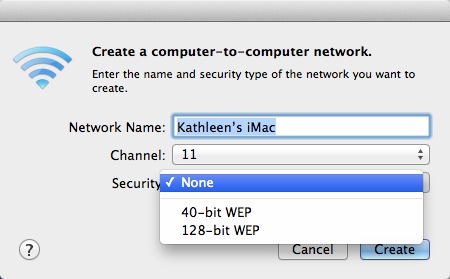
  • Pick "Create Network" and you get the "Create a computer-to-computer" network box. 
  • Give it a name, pick either channel 1, 2, or 11, and secure it with a password if you want to. 
  • On the iPad, go to Settings:Wi-Fi and pick the ad-hoc network from the list to connect to it.


AirPlay choices on the iPad


Start up the Reflection app on the desktop/laptop, double tap the home button on the iPad, swipe right, chose the AirPlay icon, pick your desktop/laptop from the list, and choose to mirror the iPad screen and you are in business!


 You will not be able to use the Internet on the computer when the computer-to-computer network is on, so, when you are done, don't forget to go to the WiFi icon on the desktop and choose to "Disconnect from . This will close your computer-to-computer network.


Since the Reflection app is only available for the Mac, there is another alternative for Windows and Mac called AirServer. The documentation states it will work over an ad-hoc network, too, so follow the directions for creating the Mac ad-hoc network above and find out how to create one in Windows 7 here.


SECOND SOLUTION


While searching for an answer to my question, I also came across a reference on how to create an ad-hoc network using the new CloudFTP device, which also does many other things, too.


I remembered that I already owned a Zuni Connect Wireless Travel Router and USB Charger which was intended to create a secure personal network in a WiFi or wired environment. I figured if the CloudFTP device could create an ad-hoc network between two devices, perhaps the Zuni Connect could, too. I simply powered it up, attached the desktop/laptop to the ZuniConnect network, and used that personal network it created to create the ad-hoc network with my laptop/desktop. I was able to connect the iPad via AirPlay on that private network and mirror it to the desktop/laptop. (I am going test this in another environment than my home to make sure it really does work!)


So, I have two solutions to utilize if the network I am using will not let my two devices see each other over a computer-to-computer network! Have you come up with some additional solutions?

Sunday, March 25, 2012

Frustration

Thanks to dieselbug2007 on Flickr for this shot. This is how I felt today!
http://www.flickr.com/photos/dieselbug2007/369649914/
I do not often get frustrated with technology. I love learning new things and figuring out the way things work. However, today I set a task list for myself which included creating 40+ screencasts of the iPad as it appeared on the laptop screen via the Reflection app.


I turned to Jing Pro to do that type of thing, since it never has failed to deliver. I set the screen capture area, used the iPad to showcase the application I want to screencast, saved the result to my computer, and plunked it into Keynote. However, since Jing Pro (http://www.techsmith.com/jing-pro-retires.html) is going away and with it the option to save locally (you will still be able to save Jings to screencast.com), I thought I should probably try another option to get more comfortable with it.


I also needed to bring in some system sound with some of the apps I was screen casting (which Jing does not do).  I knew I had successfully screen captured video and system audio with Camtasia, so I started there.  (I was using my 13.3" Macbook Air.)


Camtasia allowed me to re-size the screen, but it did not capture the video, just the audio. I then tried the new SnagIt to see if it recorded system audio, but it kept crashing on the Macbook Air.


I asked for help from my Twitter PLN and @ShellyMowinkel let me know that QuickTime Pro on the Mac now had a screen recording component. It worked like a charm for video, but, alas, could not capture system audio. However, it is the perfect replacement for Jing! Thanks so much to Shelly and @timholt2007 who suggested I try it.


I decided to download the ScreenFlow app, since there were lots of comparisons to Camtasia in reviews on the Web. It worked well and captured the video and audio, but it only captured a full screen-- not an area. I understand the rationale behind that choice, and the editing of the capture is easy in their tool, but it does add another step to the process.


I tried iShowU HD on the MBA, and I could record, but any format I picked as the output format was not recognized by QuickTime for play back. And the update to the app would not go through.


On the iMac


Since I was having no luck, I was thinking perhaps it was the laptop and not the software. 


I sat down at the iMac at home and Camtasia flawlessly recorded the video and audio. Yippee! And, after some research, I found out that an update to v.1.2.2 (which I had not done on the MBA but had done on the desktop) made it work on the Air, too. It seems to be a Lion thing, not a MBA thing!


The new SnagIt did not crash on the iMac, but I discovered it did not do system audio anyhow.


As far as iShowU HD, I finally got a message that the updater for my version was broken, and it allowed me to download the new version and install the update. It captured video and system audio in H.264 format! Now I have a second app to use! I went back and also installed the update on the Macbook Air and it successfully recorded the video and the system audio there as well.


The QuickTime Screen Recorder works well on both devices, but does not record system audio.


I also tried Adobe Captivate 5.5, and it creates a great-looking screencast but no system audio recording, either.


And, although people tell me ScreenFlow works well, I don't really want to spend $90 (with the educator's discount) on a purchase. 


With Camtasia and iShowU HD now both capturing video and system audio on my desktop and Macbook Air, I think I am set!


Recap


Remember my goal was to capture video and system audio from an iPad being AirPlayed to a Mac screen via the Reflection Mac app.


Here is the result of my testing today. I am not saying it is definitive, since there any number of things that might be different on your machine -- version of OS, version of software, etc.


Result of testing for screen capture with system audio


If you have any other information that corrects me, please add a comment!       


Follow up 1:
Here is a link to the recording of the Reflection app inside a screenshare inside an Adobe Connect Pro meeting. 


Everything seemed to work well, as per the recording. I could hear the audio, but the "audience" could not.
http://eduadvisory.adobeconnect.com/p7yfocsho42/   


Follow up 2:
Another software suggestion was Snapz Pro for the Mac, and it worked great on the iMac and the MBA while  recording system sound and video (although there is a huge watermark in the trial version!). You can chose the recording stage size, so this is another piece of software to consider. (Thanks @bhudd and @MusicEdTech!)

Follow up 3: 
The Reflection app has just released an update that will screencast their iPad projection on the computer! And it also captures the audio and works like a charm. It does not capture the iPad "frame" just the moving items and sound on the iPad screen. (http://reflectionapp.com/http://reflectionapp.com/)