kathy@kathyschrock.net

Showing posts with label Bloom's Taxonomy. Show all posts

Wednesday, August 05, 2015

Android apps for the applying level of Bloom's

This is an edited re-posting of a blog post in 2013, which originally appeared on the now-defunct Sony Education Ambassadors site.

Bloom's Revised Taxonomy is a pedagogical model we are all familiar with. This is the third in a series of resources outlining apps, Web sites, and ideas for using Bloom's Revised Taxonomy to support teaching and learning. This resource deals with Android apps for the third of Bloom's levels, applying.
The previous posts in the series were:


APPLYING LEVEL


Applying is the cognitive skill set in which students use learned material through products like models, presentation, interviews and simulations, to execute or implement a procedure.


Some activities at the applying level include:


Diane Darrow, in her Edutopia series, outlines the questions you should consider when evaluating an app for use at the applying level.


ANDROID APPS AND WEB SITES TO SUPPORT THE APPLYING LEVEL

Sharing: Audioboom

One activity at the applying level is sharing. Audioboom is an application for recording and creating a podcast. This free version allows students to create audio up to 3 minutes in length and post that to their own Audioboom page on the web. They can add titles, tags, geolocation info and a photo to the recording before it is uploaded. Here is a great overview of the use of podcasting in the classroom by Tony Vincent.

Audioboom


Teaching: Explain Everything ($2.99)

https://play.google.com/store/apps/details?id=com.morriscooke.explaineverything&hl=en
Explain Everything is a full-featured screencapture/screencaster program. It allows students to share a great idea or explain a tricky concept. They can bring in images and PDF documents and mark them up, take a photo directly, animate objects, or simply draw out the concept while recording voice audio at the same time. Students can demonstrate their learning by creating a tutorial or teaching unit for others.

Explain Everything


Publishing: Tumblr

Activities that involve publishing learned material in the form of a newspaper, article, or story can easily be done with the Tumblr app. With the app, students can post text, images, videos, and much more to showcase the application of their content knowledge. 

Tumblr


Demonstrating: Animation Desk - Sketch & Draw

Demonstrating applied knowledge can be done with a drawing animation program. There are many of these, but I like Animation Desk Lite for hand-drawn animations. It includes all the best features of an animation program-- layers, onion skinning, duplication of previous pages, easy frame management, and the completed animations can be sent out to FB, YouTube, the photo library, emailed, or saved as PDFs. Users can even record their voice as part of the demonstration. KQED offers this article about use of stop-motion animation ideas for the elementary classroom.

Animation Desk


Another stop-motion animation program, StickDraw, might be easier for younger students. Students draw and manipulate simple images.

StickDraw


Performing a skit: Comic and Meme Creator


Students can showcase the application of their acquired knowledge by performing a skit. Create A Comic allows students to add various characters and speech bubbles to impart the information in their comic.

Comic and Meme Creator


FOLLOW UP

These are just some apps to get you started! The Google Play Store offers a ton of other apps that can be used at this level (or sometimes at all the Bloom's levels!) You can find more suggestions on my Bloomin' Apps page-- look for the chart for Android apps!


Sunday, July 26, 2015

Android Apps for the understanding level of Bloom's

This is a re-posting of a blog post of August 5, 2013, which originally appeared on the now-defunct Sony Education Ambassadors site.
On July 7, 2015, I provided an overview of Bloom's Revised Taxonomy and include a set of Android apps and Web sites that could be used to support teaching and learning at the remembering level. If you did not read that first installment, please take a moment to do so...the introduction to the series can be found there.

UNDERSTANDING LEVEL


The next cognitive level of Bloom's Revised Taxonomy is the understanding level. The understanding level involves explaining and constructing meaning using various methods. Activities involving this skill level include....


Diane Darrow, in an Edutopia article, outlines the questions you need to ask when looking for and identifying apps to use to support this level of Bloom's. 


ANDROID APPS AND WEB SITES FOR THE UNDERSTANDING LEVEL

Describing: Lensoo Create

Lensoo Create is a screencasting program for the Android platform. A screencasting program allows a student to describe a process by including a real-time voice-over while drawing on the "screen" or when marking up an image. For no-cost, Lensoo Create allows up to 15 minutes of recording time, import of custom background images, and PDF file imports.

For a $4.99 in-app purchase, you can get up to 30 minutes of recording time, the custom background and PDF import, additional shapes to use, and real time video capture right in the app. If you subscribe to Lensoo Create for $1.99 per month you get all of these features plus unlimited watermarked HD downloads.

Lensoo Create


Classifying: Big Fat Canvas

Big Fat Canvas is a useful drawing tool, and, with the ability to change colors and widths of the drawing tools, student could use the app for classification of items, a skill at the understanding level. The completed drawings can be sent via email, or to Dropbox, Picasa, and Evernote. For older students, the Picasso app might be a good choice, too.

Big Fat Canvas


Picasso


Summarizing: Dual Screen Browser

The Dual Screen Browser allows the student to view two Web pages side-by-side on the screen. If one of the windows is an open Google Doc while the other window is the content that needs to be read, students can take notes and summarize while reading the other page.

Dual Screen Browser


Explaining:  Video Edit +

Video Edit+ allows the student to use images or video from their gallery or shoot video right on the tablet. Students can import audio or record it then record it directly to explain a process, a book, a science lab, a physical education activity, etc.

Video Edit+


Interpreting: Slide Show Creator

When students need to interpret something, such as this lesson about famous movie lines, they can use a slide show creator to include images from the Web or taken with the camera. The finish slide show lives on their site and also can also be emailed or uploaded to YouTube. The feature to add text to a slide is planned.

Slide Show Creator


Compare/Contrast:  Mobile Decision Maker


One way students can demonstrate understanding is to create a T-chart with compare/contrast or pro/con explanations included. Mobile Decision Maker allows students to create these charts on the tablet. Each entry can be weighted to help students make a final decision based on weighting.

Compare/Contrast


FOLLOW UP

These are just some apps to get you started! The Google Play Store offers a ton of other apps that can be used at this level (or sometimes at all the Bloom's levels!) You can find more suggestions on my Bloomin' Apps page-- look for the chart for Android apps!

Tuesday, July 07, 2015

Android apps for the remembering level of Bloom's

This is a re-posting of a blog post of July 12, 2013, which originally appeared on the now-defunct Sony Education Ambassadors site.

If you were an education major in college, you are probably very familiar with Bloom's Taxonomy. In the image below, on the left, is the original Bloom’s Taxonomy, developed in the late 1950’s by Benjamin Bloom. On the right, is the Revised Blooms Taxonomy, published in 2000 by Anderson, a student of Bloom’s, and Krathwhol. The names of the levels were turned into action verbs since Anderson and Krathwhol felt that action verbs implied engagement and re-arranged them a bit.
I want to point out is there is still a ton of instructional materials on the Web mapped to the original taxonomy and I encourage you to search for those "older" terms, also, for some good ideas.
The image below includes both the original and revised taxonomies as well as the mapping of the levels to make it more clear when identifying resources to support them.


However, when I think about Bloom's Taxonomy, I do not think of it as a triangle. The triangle image seems to indicate learners start at the bottom and move upwards. I feel that we use each level of the cognitive processes over and over as we begin to acquire new knowledge on a topic. My view of Bloom's Revised Taxonomy looks like the version below, The Cogs of the Cognitive Processes, with all of the levels inter-related and dependent on one another.


REMEMBERING LEVEL


The first cognitive level of Bloom's Revised Taxonomy is the remembering level. The remembering level involves finding information, storing it somehow and then recalling it. Activities involving this skill level include...


Diane Darrow, in an Edutopia article, outlines the questions 
you need to ask when looking for and identifying apps to use to support this level of Bloom's.


ANDROID APPS AND SITES FOR THE REMEMBERING LEVEL


Information searching: Diigo
Diigo is an online bookmarking tool that allows students to gather information, tag it, and annotate it. With the Diigo Power Note app, they can add text notes, bookmarks, cached pages, pictures, text messages to their Diigo library as well as access information already in the library.


Retrieve information: Evernote
Evernote is a must-have app that allows students to gather assets dealing with a topic.  It runs on all devices and operating systems and allows the user to take notes, capture photos, create to-do lists, record voice reminders and search of all these. It is an organizational tool each student should have!


One tool that I have started using is Pocket, which downloads the items you add to it. This is a great way for students to have a hard copy of what they have found.  They can view the collection visually or in a list. They can also easily get back to the original site.


Remembering terms, ideas and facts can be accomplished with a concept map. Simple Mind Free lets students easily create a mind map, concept map, or flow chart. Students can use Simple Mind Free for all types of things, such as brainstorming new ideas, illustrating concepts, making lists and outlines, planning presentations, creating organizational charts, and more! There is even a desktop version available for Mac and Windows.


One way for students to remember is to label a diagram or image or illustrate a concept.
Skitch lets students--
- Annotate: Add arrows, shapes and text to existing images
- Create: Draw something new
- Edit: Reposition, recolor and remove annotations at will
- Share: Send sketches and annotations to Twitter, email or Evernote


Timelining: TimelineJS
http://timeline.verite.co/

Timelining is another activity based at the remembering level. TimelineJS is not an app but a Web site. It works best through the Dolphin Browser..  A student visits the TimelineJS site, downloads a Google Spreadsheet template to his/her Google Drive, edits the sample content with timeline information, and publishes it. The student then goes back to the site, enters the published URL of the Spreadsheet, and receives the embed code that can be put into a Google Site, a Weebly page, or blog. This timeline can include video, too!

These are just some apps to get you started! The Google Play Store offers a ton of other apps that can be used at this level (or sometimes at all the Bloom's levels!) You can find more suggestions on my Bloomin' Apps page-- look for the chart for Android apps!


Thursday, November 21, 2013

SAMR Model Musings

I have been asked to elaborate on my understanding of the SAMR model, a model written about extensively by Dr. Ruben Puentedura. This model suggests a structure for the design of embedded technology use in the classroom to have a significant impact on student outcomes.

My feeling is this model supports teachers as they design, develop, and integrate digital learning experiences that utilize technology to transform learning experiences. Along the continuum, the student engagement becomes more of the focus and students are then able to advance their own learning in a transformational manner.


Puentedura's visual of the SAMR model is self-explanatory, as seen below.

SAMR model

I decided to take the typical classroom process of note taking to demonstrate my thoughts for how the SAMR model might look in a classroom.


SUBSTITUTION LEVEL

Note taking is traditionally done with paper and pen/pencil.


At the substitution level, you first have to think about what will be gained by the use of technology for the task. You want to make sure you are not advocating technology use just for technology's sake.

In the case of note taking, however, the benefit of having notes in a digital format for ease of sharing and uploading, and providing access to them anywhere, any time, is a useful substitution activity. 

At this level, the technology substitution, with no real change in student engagement, would be the use of a stand-alone or cloud-based word processing program.


AUGMENTATION LEVEL

At the augmentation level, there again is a direct tool substitute, but there is some improvement in student outcomes. At this level, one of the benefits is teachers can receive almost immediate feedback on student level of understanding of material and students can also learn from others.

One way this can occur is by the use of a backchannel tool (such as Today's Meet or Padlet) for whole-class note taking. The augmentation level starts to move along the teacher/student-centric continuum. The impact of this immediate feedback and collaboration is that students should begin to become more engaged in the learning process.


MODIFICATION LEVEL

Modification allows for a change in the task redesign. Students can be asked to take notes using a screencasting tool and then later go back and add the audio component and post these online for their peers and anyone else who wants to see them. Because they are working for an public audience with this task, each student has a personal stake in their note taking.

http://screencast-o-matic.com/channels/clj6hlnqU

Another modification option for note taking using technology would have students creating mind maps or concept maps as they take notes. Again, these can be easily shared. A collaborative version of this mapping could be implemented as groups of students take notes on certain aspects of the lecture, presentation, reading, etc. and then pull all the maps together to complete the picture. (I call this the "Ancestry.com" model!)

https://library.usu.edu/instruct/tutorials/cm/Samples_files/cm.gif

REDEFINITION

With redefinition, the emphasis is on student-centered learning. The student learns new skills and concepts as they complete the task. Sketchnoting, or visual note taking, is a way for students to practice listening as well as planning an organizational strategy for taking notes. There are drawing and note-taking apps for all platforms available for sketchnoting. (A lot more about sketchnoting can be found here.) A redefined task would be for students to sketchnote, share online, and provide answers to questions about the content included in the public venue.


http://networkedmedicine.tumblr.com/post/43788097011/sketchnote-that-i-drew-reflecting-class-discussion

MAPPING BLOOM'S AND SAMR

Below is a visual of my initial thoughts on the relationship between Bloom’s and the SAMR model. I feel teachers need to both create tasks that target the higher-order cognitive skills (Bloom's) as well as design tasks that have a significant impact on student outcomes (SAMR). It's as simple as that.


Educators will argue that they have seen redefinition tasks that only target the remembering level or have a creative assessment that is only at the augmentation level. Of course that is true, but I believe we should be planning for technology tasks, activities, and assessments that include both the higher levels of Bloom's Revised Taxonomy and the transformation area of SAMR model.

I have created a page of SAMR resources if you want to learn more and come to your own conclusions about how it might be implemented in your classroom.

Comments? Thoughts?  Email me or find me on Twitter @kathyschrock

Sunday, May 20, 2012

The interlocking of cognitive processes

Yesterday on Twitter, Dr. James Norwood (@JRNorwood) posted a short tweet entitled "Flipping Bloom's Taxonomy". The intriguing title led me to click to the link that led to his Teaching in the Middle blog post about a blog post he had read on Shelley Wright's blog, Powerful Learning Practice.

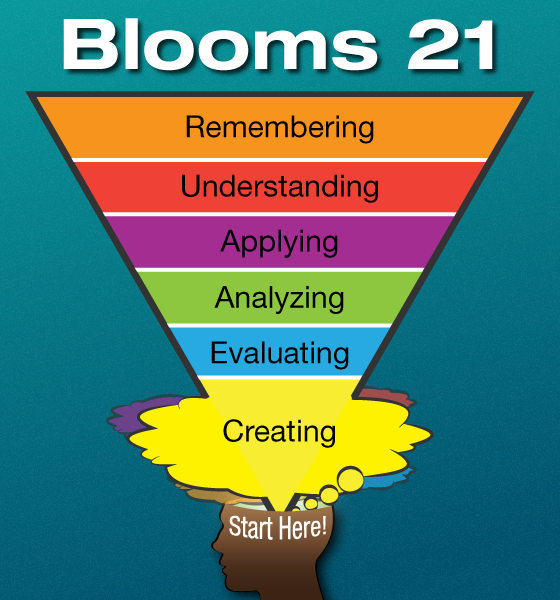
The gist of the blog post was Shelley's idea to start with the creating cognitive process and "flip" the pyramid so it looks something like the image below.. She states, "Here’s what I propose. In the 21st century, we flip Bloom’s taxonomy. Rather than starting with knowledge, we start with creating, and eventually discern the knowledge that we need from it."

http://plpnetwork.com/wp-content/uploads/2012/05/bloom_pyramid-2.png

 I do not think I agree. I do promote the use of problem, project, inquiry, and/or challenge based learning models  to allow students to take control of their learning. However,  I truly believe students need to have at least some knowledge-base in a topic before they can analyze, evaluate, or create something with the content at hand. In addition, during the acquisition and creation of new knowledge, learners move up and down the cognitive levels as they need to.

Shelley states that she (and many others) were taught that "Blooms becomes a “step pyramid” that one must arduously try to climb with your learners." I am glad my professors at Rutgers College of Education did not teach it this way! I am a big fan of the pedagogical model and thinking about the different levels has always allowed me to plan activities at any (or all) of the levels at any point in the teaching and learning process. I never thought of Bloom's Taxonomy as a series of steps to the top.


However, I do agree with Shelly that the pyramid shape, with the little tip left for creating, may confuse some educators into thinking only some students are capable of getting to that level or creativity is a small component of the cognitive skills process.


I gave it some thought, and developed a different graphic to represent the taxonomy based on how I utilize it. Take a look at the image below and let me know what you think!


References:
Norwood,  James. 17 May 2012.  "Flipping Bloom's Taxonomy". Blog post. Teaching in the Middle,
Wright, Shelley.  15 May 2012. "Flipping Bloom's Taxonomy". Blog post. Powerful Learning Practice.